Discovering the hidden features Samsung phone devices offer can completely transform your daily smartphone experience.
One of the greatest advantages of owning a Galaxy device is the sheer amount of customization built directly into the software skin.
Even after using these mobile devices for nearly five years, many users assume they know every single option One UI provides.
However, it is surprisingly easy to miss incredibly powerful utilities that are sitting directly in plain sight.
These features are not deeply locked away behind complex modular software downloads from separate app stores.
Instead, they are deeply integrated into the standard settings framework, waiting to be activated by everyday users.
Let us take a deep dive into these obscure tools so you can stop downloading unnecessary third-party applications.
The first tier of powerful hidden features Samsung phone devices include centers around immediate daily productivity tasks.
Many users explicitly choose to turn off the default Edge Panel interface to prevent accidental side-swiping triggers.
However, bypassing this interface entirely means you miss out on highly responsive utility systems.
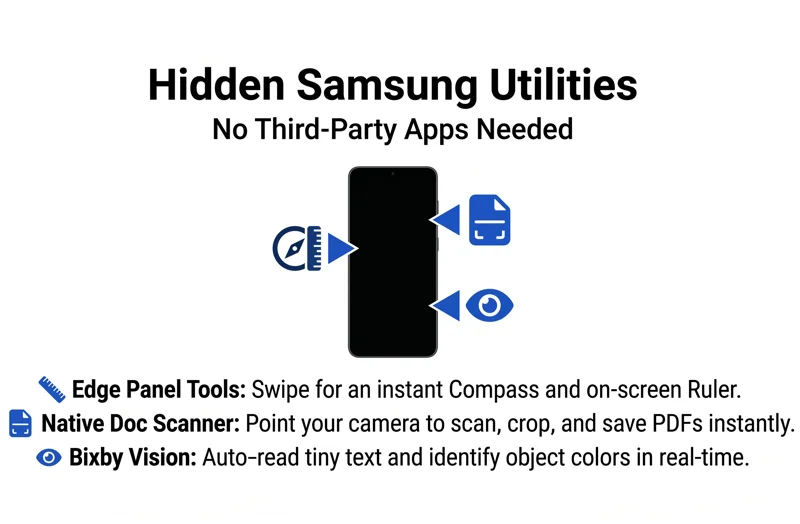
By simply enabling the specific Tools layout via your settings, you gain immediate access to a highly precise native compass.
This built-in compass even displays your live directional coordinates without requiring cellular map data to function.
Furthermore, tapping the sub-menu options instantly transforms the entire side of your glass screen into a fully adjustable physical ruler.
You can seamlessly shift the measurement scales between standard centimeters and inches depending on your immediate physical project needs.
One UI packs an entire toolbox of physical instruments directly under the Edge Panel, eliminating the need for standalone utility apps.
The Advanced Document Scanner in your Galaxy Camera
Another major highlight among the hidden features Samsung phone devices boast is the deeply integrated multi-page document scanner.
For several years, consumers routinely suffered through ad-heavy third-party applications just to scan basic receipts or work contracts.
Instead, you can simply point your main rear camera lens directly at any physical sheet of paper on a flat surface.
The camera system automatically recognizes the paper borders and presents a dedicated, yellow-highlighted scanning button.
Once captured, the integrated editor allows you to meticulously shift corners, remove finger outlines, and filter out moire patterns.
However, there is an explicit limitation in older generations that you must be aware of during operation.
| Galaxy Model Generation | Scanner Capability | Output Options |
|---|---|---|
| Galaxy S26 Series | Advanced Multipage Scanning & Editing | Image / High-Quality PDF |
| Legacy Devices (S25 and older) | Single Page Scanning Only | Standard Image File |
While the vast majority of users choose to completely ignore the Bixby virtual assistant voice option, its visual framework remains robust.
Tapping the eye icon inside the main camera sub-menus activates Bixby Vision, which functions as an excellent live accessibility tool.
The Object Identifier mode recognizes general structural targets in real time, like keyboards, monitors, or various household appliances.
Additionally, the dedicated Color Detector tool explicitly speaks aloud the exact color shade you are pointing your camera lens at.
The most beneficial sub-tool for near-sighted individuals is the integrated Text Reader utility.
It cleanly isolates fine print on tight medication bottle labels or grocery receipts, blowing the text up for easy reading.
Moving past standard desktop utilities, the deepest hidden features Samsung phone devices hold require a secret activation combination.
Proper home router placement is incredibly difficult due to thick concrete walls, heavy wooden furniture, and household appliances blockades.
Fortunately, wireless networking diagnostics can be monitored natively using an advanced Wi-Fi inspection diagnostic tool.
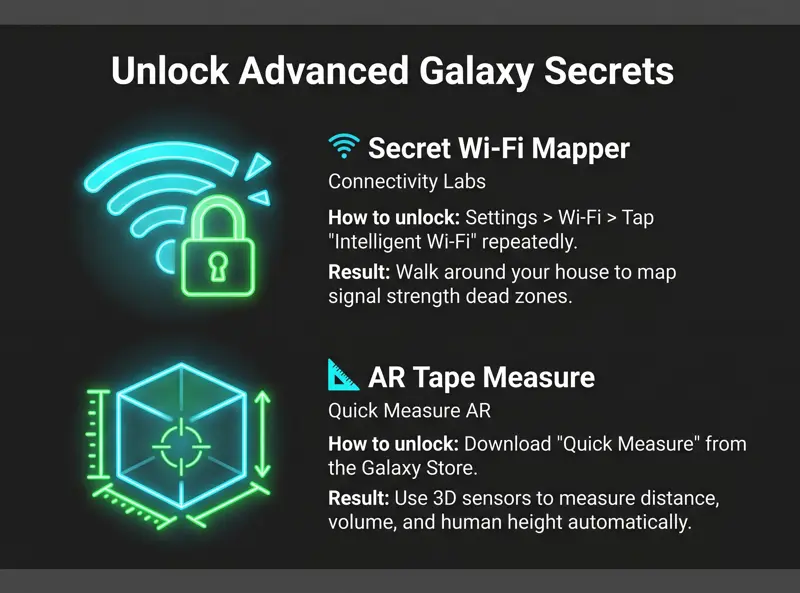
This deep diagnostic menu is cleverly masked inside your settings behind a deliberate sequence of repetitive taps.
Once unlocked, this developer tool maps out your precise network coverage across different rooms in real time.
| Menu Navigation Step | Action Required | Feature Unlocked |
|---|---|---|
| Step 1: Wi-Fi Settings | Tap Three-Dot Menu > Intelligent Wi-Fi | Basic Optimization Panel |
| Step 2: Version Tapping | Tap “Intelligent Wi-Fi” label repeatedly | Developer Access Trigger |
| Step 3: Connectivity Labs | Enter the new lower menu option | Home Wi-Fi Inspection Mapping |
Using the Wi-Fi Inspection Mapping Feature
Once you successfully enter the secret Connectivity Labs menu, choose the Home Wi-Fi inspection option.
Select your primary home network and begin physically walking slowly around the rooms of your house.
Your mobile device will meticulously record and graph the fluctuating wireless decibel strength across every single square foot.
This allows you to accurately compare performance differences between the 2.4GHz long-range band and the high-speed 5GHz band.
This is easily one of the most technical and valuable hidden features Samsung phone configurations possess for home network optimization.
By unlocking Connectivity Labs, your device functions as a professional network signal analyzer without requiring premium paid software.
Turning Your Device Into an AR Tape Measure
The final hidden features Samsung phone showcase involves turning advanced augmented reality tracking hardware into a spatial tape measure.
By downloading the official Quick Measure app directly from the secure Samsung Apps Platform, you unlock deep camera sensor integration.
The application completely leverages specialized Time-of-Flight sensors or advanced camera matrices to judge real-world distance.
Simply pointing the lens at an object instantly displays exactly how far that specific target is from your physical position.
Furthermore, the software automatically detects distinct structural boundaries like squares, rectangles, and round objects.
If you highlight a wooden table, it instantly overlays the precise length, width, and overall square footage on your screen.
While you should avoid relying entirely on this software tool for exact architectural remodeling blueprints, it works brilliantly for furniture shopping.
| AR Measurement Mode | How It Works | Best Practical Use Case |
|---|---|---|
| Automatic Shape Detection | Identifies boxes and calculates volume instantly | Measuring shipping boxes or mail packages |
| Manual Point-to-Point | Tap plus icon to manually set start and end coordinates | Checking if a couch fits through a doorway |
| Human Height Tracking | Locks onto the human frame from head to toe automatically | Quickly measuring a person’s physical height |
Ultimately, taking the time to explore these advanced tools proves that modern smartphones are infinitely more versatile than we think.
Instead of slowing down your processing chip with questionable third-party software, take full advantage of native solutions.
From the hidden features Samsung phone designs bundle inside the Edge Panel to the complex networking systems of Connectivity Labs, you are fully covered.
Go ahead and open up your system settings menu right now to explore these phenomenal tools firsthand!
7 Frequently Asked Questions
Navigate directly to Settings > Display > Edge panels > Panels, and ensure you explicitly activate the default Tools panel choice.
Can every Galaxy model scan multipage documents natively?
No, the ability to scan multi-page documents and group them together sequentially inside the native Camera app is exclusive to the newer Galaxy S26 lineup.
Yes, it is a built-in diagnostic menu created by developers to safely monitor real-time wireless signal drop-offs without altering system code.
Where do I download the official Quick Measure AR application safely?
You can quickly download the official tool by browsing the pre-installed Galaxy Store on your device and searching for Quick Measure.
Does the built-in document scanner save files directly into PDF format?
Yes, once you finish editing and clean up any corner imperfections, the native scanner allows you to save the document as a standard image or a clean PDF file.
Do I need an active internet connection to use the Edge Panel ruler tool?
No, the Edge Panel ruler relies entirely on your local screen pixel layout and functions perfectly offline without any data consumption.
Is Bixby Vision completely free to use on all modern devices?
Yes, Bixby Vision is entirely free and comes fully pre-installed inside the default camera application system across modern Galaxy models.
Disclaimer: This article is for informational purposes only. The accuracy of hardware-based AR measurements and Wi-Fi network scanning charts may vary depending on your specific mobile model, sensor configurations, and physical home environment layouts.