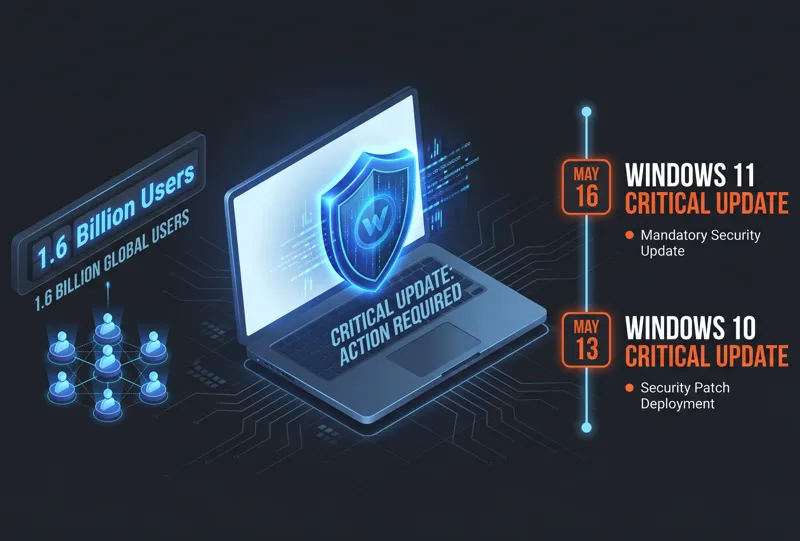
If you have recently seen an alert emphasizing that action is needed microsoft changes windows update in 10 days, you are part of a massive global transition affecting over 1.6 billion PC users. Microsoft is currently executing one of its most significant infrastructure shifts since 2011, officially terminating outdated critical Secure Boot certificates. With the rollout of recent patches, the operating system is actively assessing device compliance, and failing to address these warnings could leave your system vulnerable.
For over a decade, Secure Boot has acted as a primary gatekeeper for your PC, ensuring that no malicious code or unauthorized software loads before the operating system boots. The shift involves retiring old cryptographic keys and issuing refreshed certificates. While a large percentage of devices will smoothly transition via automated PC firmware updates, many users will need to manually intervene to maintain optimal Microsoft device security.
“The deprecation of 2011 Secure Boot keys marks a pivotal era in Windows security, requiring proactive user engagement.”
Phase 2 Critical Deadlines Approaching
Microsoft’s deployment strategy involves multiple phases to minimize disruption. However, the most critical stage, known as Phase 2, is fast approaching. During this phase, Microsoft elevates the urgency of the notifications. The initial status update hit earlier in the year, but the escalation to aggressive “yellow” and “red” alerts is what makes this a pressing Windows 11 critical warning and Windows 10 security update scenario.
| Operating System | Phase 2 Escalation Date | Impact |
|---|---|---|
| Windows 10 | May 13 | Aggressive security notifications begin. |
| Windows 11 | May 16 | Critical warnings for unserviceable Secure Boot states. |
For authoritative documentation regarding these deployment phases, you can review the official advisories published by Microsoft Support. It is highly recommended that IT administrators and everyday users alike monitor their systems closely around these dates.
Interpreting Your Device Security Status
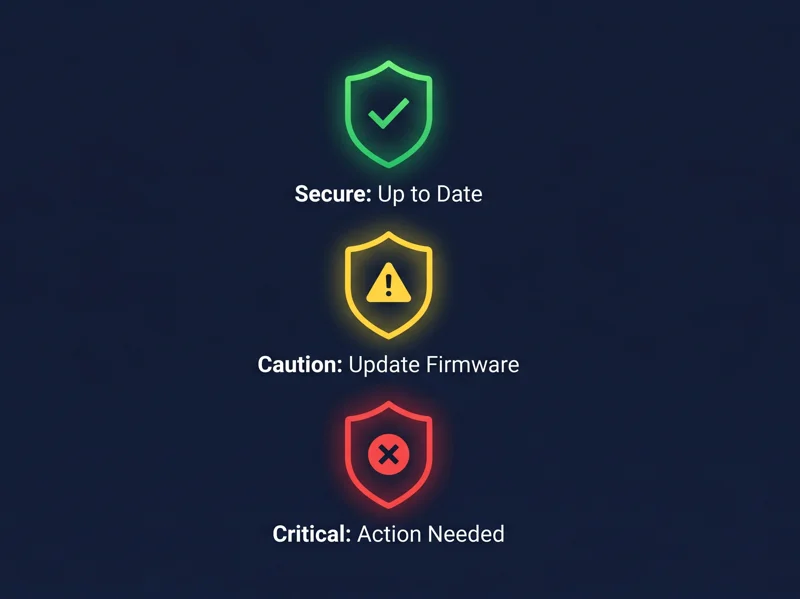
Following the recent updates, the Windows Security app will visibly display whether your device has received the necessary Secure Boot certificates. You can find this information by navigating to Device Security > Secure Boot in your system settings. The interface utilizes a straightforward color-coded system to communicate your current vulnerability status.
“Ignoring a red critical warning essentially opts your device out of future fundamental firmware protections.”
Understanding what these colors mean is essential for maintaining your system’s integrity.
| Status Color | Meaning | Recommended Action |
|---|---|---|
| Green | Up to date. New certificates installed. | None required. Your PC is secure. |
| Yellow (Caution) | Actionable state; update pending or requires manual firmware flash. | Check for OEM updates. You may suppress the notification temporarily. |
| Red (Critical) | Unserviceable Secure Boot state. | Immediate action required. Accepting risks disables further warnings. |
Step-by-Step Guidance to Protect Your PC
If you encounter a yellow or red warning, do not panic, but do not ignore it either. The first step is to ensure that your device has all the latest standard Windows updates installed. Go to Settings > Update & Security > Windows Update and click “Check for updates.”
If the warning persists, the issue likely lies with your motherboard’s firmware. Many Original Equipment Manufacturers (OEMs) provide targeted firmware updates to resolve these specific certificate mismatches. You will need to visit your computer manufacturer’s official support website, locate your specific device model, and download the latest BIOS/UEFI update. Be very careful during a BIOS update, as interrupting the process can cause permanent damage to your motherboard.
“Keeping your device current with OEM firmware updates helps ensure it continues receiving the full suite of Secure Boot protections.”
If you choose to ignore the red warning and select ‘I accept the risks, don’t remind me,’ Windows will revert the security badge to green and suppress future notifications. However, this is a dangerous practice. Aesthetically hiding the warning does not fix the underlying vulnerability, leaving your PC exposed to sophisticated bootkits and rootkits.
| Resolution Method | Complexity | Effectiveness |
|---|---|---|
| Automated Windows Update | Low | High (if successful) |
| Manual OEM BIOS Update | Medium-High | Very High |
| Suppressing the Notification | Low | Zero (Purely cosmetic) |
Frequently Asked Questions (FAQs)
What exactly is Secure Boot?
Secure Boot is a security standard developed by members of the PC industry to help make sure that a device boots using only software that is trusted by the Original Equipment Manufacturer (OEM).
Why is Microsoft changing Secure Boot certificates now?
The original certificates have been in place since 2011. Advancements in cryptography and the evolving threat landscape necessitate stronger, updated keys to maintain robust security.
What happens if I ignore the 10-day warning?
Your PC will continue to function, but it will lack the updated cryptographic protections, making it significantly more vulnerable to advanced malware that attacks the system during the boot process.
Does this affect both Windows 10 and Windows 11?
Yes, this is a broad infrastructure update affecting users on both operating systems, with specific escalation dates of May 13 for Windows 10 and May 16 for Windows 11.
How do I know if my PC has been successfully updated?
Navigate to Windows Security > Device Security > Secure Boot. If the status indicator is green, your certificates have been successfully refreshed.
What does accepting the risks on a red critical warning do?
It suppresses the warning notifications and turns the badge green artificially. It does not fix the security flaw, and you remain vulnerable.
Can I update my firmware without an IT professional?
Yes, but you must follow your specific PC manufacturer’s instructions carefully. Flashing a BIOS incorrectly can cause a device to become unbootable.
Disclaimer: This article is for informational purposes only. Modifying system firmware or security settings carries inherent risks. Always ensure your data is backed up before performing system updates, and consult with a qualified IT professional if you are unsure about the steps required to update your BIOS or UEFI firmware.