It is incredibly ironic that Windows 11 Copilot now tells you whats slowing down your PC while using 1GB RAM itself. In 2026, Microsoft introduced an advanced AI tool called PC Insights to help users troubleshoot system lag.
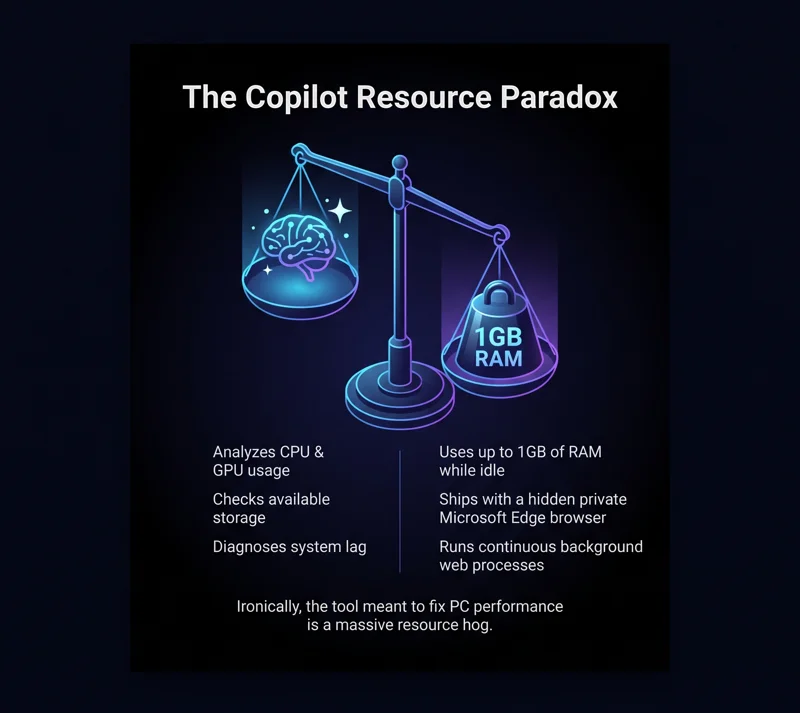
This built-in tool is explicitly designed to identify system resource usage and pinpoint the root causes of hardware performance issues. However, the AI assistant itself has evolved into a massive resource hog.
In this comprehensive guide, we will explore this paradoxical Windows update. We will examine how Copilot analyzes your computer and why it consumes so much memory in the background.
The Irony: Windows 11 Copilot now tells you whats slowing down your PC while using 1GB RAM itself
Microsoft recently rolled out an update that allows its AI to analyze your operating system in real-time. It reads CPU, GPU, and memory loads directly by tapping into native Windows APIs.
The primary goal is to provide plain-language answers to hardware questions, effectively bypassing the need to navigate the traditional Task Manager. Yet, users quickly noticed a glaring issue with the software’s execution.
The stark reality is that Windows 11 Copilot now tells you whats slowing down your PC while using 1GB RAM itself. This heavy memory drain occurs even when the AI application is sitting entirely idle on your desktop.
“Microsoft wants you to use Copilot to understand system usage, while the AI itself acts as a massive desktop resource hog.”
How PC Insights Works When Windows 11 Copilot now tells you whats slowing down your PC while using 1GB RAM itself
The PC Insights feature is an optional, highly integrated tool. It empowers you to ask contextual, conversational questions about your computer’s current hardware state.
For instance, you can ask the AI if you have enough available storage space to install a massive 100GB video game. The system will check your drives and give a direct, accurate answer instantly.
It can also calculate specific folder sizes, check active background processes, and verify if your antivirus is running. It serves as a very capable AI performance monitor.
| Category | Example Questions to Ask Copilot |
|---|---|
| General Hardware | What exact graphics card do I currently have installed? |
| Storage & Files | How big is my Downloads folder right now? |
| System Performance | What is my current CPU and memory usage? |
Behind the Scenes: Windows 11 Copilot now tells you whats slowing down your PC while using 1GB RAM itself
Why exactly does this helpful AI assistant consume so much valuable memory? The answer lies in its recent architectural changes. Following an internal reorganization, Copilot was quietly switched back to a web app format.
It now ships bundled with a private, hidden copy of the Microsoft Edge browser. This isolated browser installation runs continuously in the background to support the AI’s core web-based functions.
Because it utilizes full Chromium code to operate, Windows 11 Copilot now tells you whats slowing down your PC while using 1GB RAM itself, acting essentially as a hidden secondary browser instance.
“If Microsoft wants users to fix Windows 11 performance, they urgently need to optimize their own bundled web applications first.”
Privacy Concerns and Copilot RAM Consumption
By default, the AI is restricted and not supposed to read your specifications without explicit permission. The PC Insights diagnostic feature requires a manual opt-in from the system administrator.
Microsoft insists that your personal documents and internal system information are completely secure. You can read more about data safety in the official Microsoft Support Documentation.
However, if you grant the app “Always allow” permissions, it will continuously monitor your hardware. This constant monitoring contributes heavily to the Copilot RAM consumption issues.
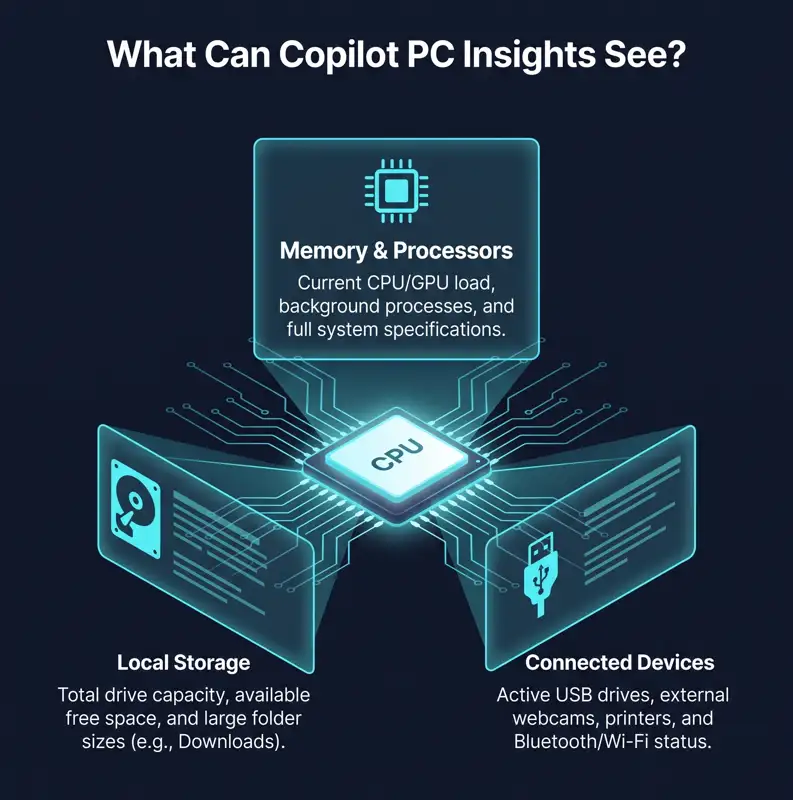
| Hardware Analyzed | What Copilot Can Actively See |
|---|---|
| Memory & Processors | Current computational load, background processes, and system specifications. |
| Connected Peripherals | Active USB drives, external webcams, printers, and Bluetooth connection status. |
| Local Storage Drives | Total hard drive capacity, available free space, and specific large file sizes. |
Conclusion: The Ultimate Paradox of AI Optimization
There is absolutely no denying that having an AI assistant integrated directly into the operating system is incredibly helpful. It simplifies digital troubleshooting significantly for everyday beginners.
Yet, power users find it incredibly frustrating that Windows 11 Copilot now tells you whats slowing down your PC while using 1GB RAM itself. This heavy memory footprint actively defeats the primary purpose of system optimization.
Until Microsoft officially optimizes Copilot’s RAM consumption and removes the bloated Microsoft Edge web app dependency, advanced users might prefer sticking to the traditional, lightweight Task Manager.
Frequently Asked Questions (FAQs)
Why does Copilot use so much RAM in the background?
It operates as a bloated web app bundled with a private Microsoft Edge installation, requiring significant active memory to run its Chromium-based code.
Does Copilot read my personal files automatically?
No, it does not. The AI strictly requires explicit user permission to read file sizes or scan personal folders like your Downloads or Documents.
Can the AI actually fix my PC problems automatically?
Currently, Copilot only has read-only access. It can expertly diagnose hardware issues but cannot execute system fixes or delete files directly.
Is it true that Windows 11 Copilot now tells you whats slowing down your PC while using 1GB RAM itself?
Yes, it is entirely true. The new PC Insights feature diagnoses system lag, but the web-based app itself can easily consume up to 1GB of idle memory.
How do I turn off the PC Insights hardware monitoring?
You can manage all Copilot permissions directly in your privacy settings, switching access from “Always allow” to “Ask every time” or disabling it entirely.
Does Microsoft secretly train its AI on my hardware data?
Microsoft officially states they do not use personal files or system hardware information to train their global models, only your conversation prompts.
Can I completely remove Copilot from Windows 11?
Yes, enterprise users and advanced administrators can completely disable or block the AI application from running by using native Group Policy settings.
Disclaimer: This article is for informational purposes only…