Learning how to use google chrome ai powered skills is rapidly becoming an essential productivity hack for professionals and casual web users alike in 2026. As Google continues its aggressive integration of artificial intelligence into everyday software, the world’s most popular browser has received a massive workflow upgrade. The introduction of “Skills” allows users to execute complex, automated tasks with just a few keystrokes, completely transforming how we interact with web pages, recipes, videos, and long-form articles without needing to write complex prompts from scratch every single time.
What Are Chrome Skills & How to Access Them
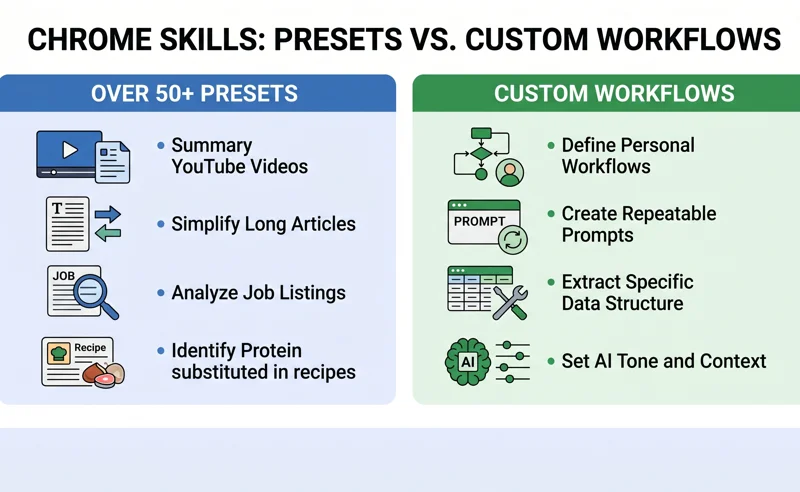
Skills are essentially repeatable AI prompts integrated directly into the Google Chrome Gemini sidebar. Instead of typing out a long, highly specific prompt every time you want to analyze a webpage, you can simply trigger a pre-configured command. At launch, Google included a robust library of more than 50 preset generative AI browser features. These built-in tools range from summarizing lengthy YouTube videos into digestible bullet points to evaluating job listings based on your specific resume parameters.
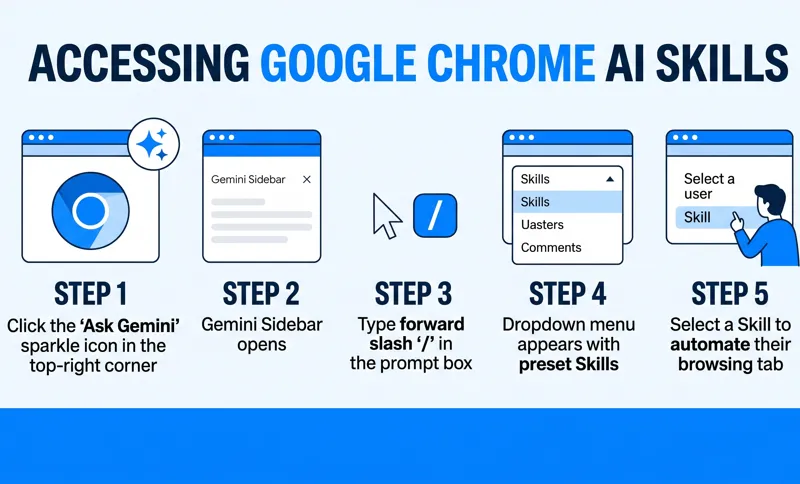
To get started with these tools, you need to open the Gemini sidebar. Look for the “Ask Gemini” sparkle icon located in the upper-right corner of your Chrome browser window. Once the sidebar is active, simply type a forward slash (“/”) in the prompt box. This action opens a dropdown menu displaying the entire library of available Skills. Select the one you need, and Gemini will immediately analyze the active browser tab based on the Skill’s pre-defined parameters.
| Preset Skill Category | Functionality Description | Best Used For |
|---|---|---|
| Video Summarizer | Extracts key points and timestamps from media. | Long YouTube tutorials and lectures. |
| Job Evaluator | Matches job descriptions against user profiles. | Browsing LinkedIn or Indeed postings. |
| Recipe Optimizer | Suggests ingredient substitutions for health goals. | Food blogs and cooking websites. |
“The more than 50 presets in the Skills library cover a range of prompts that instruct Gemini to summarize YouTube videos, maximize your protein intake via recipe substitutions, or evaluate job listings with incredible speed.”
Creating Custom Workflows with Repeatable AI Prompts
While the initial library of presets is incredibly useful, the true power of this browser update lies in the ability to create your own repeatable AI prompts. Productivity enthusiasts and heavy internet researchers can define custom parameters tailored strictly to their daily workflows, essentially creating personalized micro-apps that live inside the browser. By setting up a custom Skill, you instruct the AI on exactly how to format data, what tone to use, and what specific information to extract from any given webpage.
For instance, Google highlighted a “Protein Maximizer” Skill during its demonstration. This specific Skill scans a recipe webpage, identifies all ingredients, calculates the current protein content, and suggests flavor-matching substitutions to increase the nutritional value while maintaining the original taste profile. For the latest official updates on these capabilities and to learn more about the underlying AI models, you can check the Google Chrome Official Updates Blog.
| Workflow Type | Example Custom Prompt Structure | Time Saved |
|---|---|---|
| Financial Research | “Analyze this earnings report and highlight revenue growth.” | High (Automates reading dense PDFs) |
| Content Curation | “Extract all quotes and format them as tweets.” | Medium (Removes manual copying) |
| Language Learning | “Translate this page to Spanish and explain the idioms.” | High (Provides instant tutoring) |
Managing Settings: The Chrome AI Innovations Tab
Despite the incredible utility of these generative AI browser features, not everyone wants a chatbot hovering on their screen while they browse. If you prefer a traditional, uncluttered web experience, Google has made it relatively simple to disable the feature entirely. You are not forced to use the Gemini integration if it does not fit your personal browsing habits.
“Users who aren’t interested in this feature but still want to use Chrome have the option of removing the Ask Gemini button entirely to maintain a clean browser interface.”
To turn off the sidebar and disable Skills, you need to open your Chrome Settings and select the Chrome AI Innovations tab on the left-hand menu. Within that menu, locate the “Gemini in Chrome” section. From there, simply toggle off the Ask Gemini button settings. Once disabled, the sparkle icon will instantly disappear from your browser’s top toolbar. If you ever change your mind, you can return to this exact menu to re-enable the feature.
| Browser Platform | AI Automation Feature Name | Core Differentiation |
|---|---|---|
| Google Chrome | Gemini Skills | Deep integration with Google accounts and Workspace. |
| Opera Neon | AI Cards | Focuses heavily on lifestyle planning and travel. |
| Microsoft Edge | Copilot Prompts | Tied directly to Microsoft 365 and Windows OS. |
Frequently Asked Questions
What exactly are Google Chrome Skills?
Skills are preset, repeatable AI prompts powered by Gemini that allow you to quickly analyze, summarize, or alter the content of the webpage you are currently viewing without typing out a new prompt every time.
First, click the “Ask Gemini” sparkle icon in the top right corner of Chrome to open the sidebar. Then, type a forward slash (“/”) into the text box to reveal the list of available Skills.
Can I create my own custom AI Skills?
Yes. While there are over 50 preset Skills available at launch, users can also design and save their own custom prompts tailored to their specific workflows and productivity needs.
No, it is entirely optional. You can remove the button and disable the feature by navigating to Chrome Settings and turning it off in the AI Innovations tab.
Will Chrome Skills read my private tabs?
Gemini only analyzes the information from the specific browser tabs you actively share with it when you trigger a Skill in the sidebar.
Are there other browsers that do this?
Yes. Browsers like Opera Neon have a similar feature called “Cards,” and Microsoft Edge utilizes automated prompt features through its built-in Copilot assistant.
Are Chrome Skills free to use?
Currently, the standard Skills integrated into the Chrome browser via the standard Gemini sidebar are available to users at no additional cost, though premium Gemini tiers may offer enhanced capabilities.
Disclaimer: This article is for informational purposes only. Browser features, AI functionalities, and software settings are subject to change based on Google’s ongoing updates and software rollouts.