Before you dive into the immersive audio experience of your new headphones, checking the airpods max 2 firmware is an absolute necessity. Just ahead of the highly anticipated retail launch in 2026, Apple has surprised the tech community by releasing a crucial day-one firmware update for its premium over-ear headphones. The newly released software, identified officially as version number 8E251, is not just a minor bug fix. It is a fundamental requirement for unlocking the true potential of the hardware you just paid top dollar for. If you want to experience the flawless audio ecosystem Apple promises, you need to ensure this update is installed before your first major listening session.
The Power of the H2 Chip and Firmware 8E251
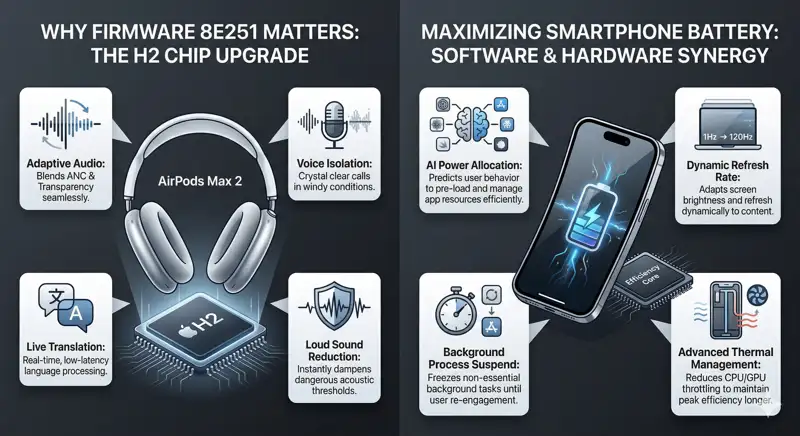
The defining hardware upgrade in the new headphones is the inclusion of the advanced H2 chip, which completely replaces the aging H1 silicon found in the first-generation model. This new chip brings unprecedented computational audio capabilities to the over-ear form factor. Features such as Live Translation, Adaptive Audio, Loud Sound Reduction, and Voice Isolation are all heavily dependent on the processing power of the H2 chip. However, hardware is only as good as the software directing it.
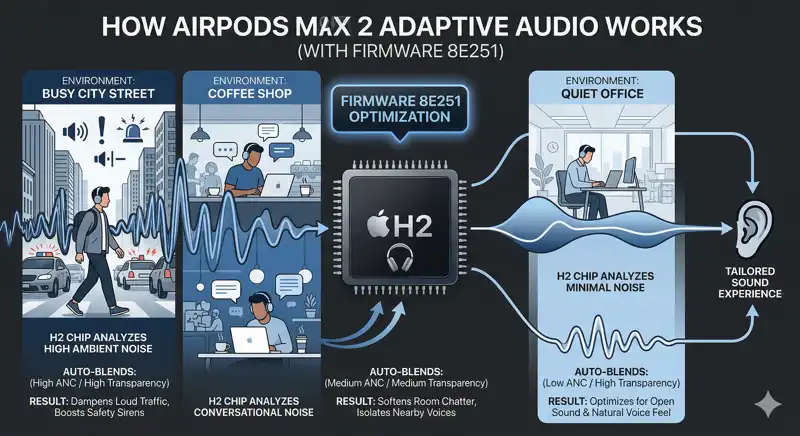
The unexpected pre-launch release of firmware version 8E251 strongly indicates that Apple engineers have been working down to the wire to optimize how these new features operate in real-world environments. The firmware refines the algorithms responsible for active noise cancellation and transparency modes, ensuring they seamlessly adapt to your changing surroundings without noticeable latency.
“The leap from the H1 to the H2 chip represents a paradigm shift in computational audio, making day-one firmware updates critical for peak performance and seamless ecosystem integration.”
Breaking Down the H2 Innovations
To understand why this firmware is so vital, we have to look at what the H2 chip is actually processing every millisecond. The introduction of Adaptive Audio dynamically blends Transparency mode and Active Noise Cancellation together to tailor the noise control experience as you move between different environments. Meanwhile, Voice Isolation ensures your voice sounds crystal clear on calls, even in windy or noisy conditions.
| New H2 Audio Feature | Primary Function | Why Firmware Matters |
|---|---|---|
| Adaptive Audio | Dynamically blends ANC and Transparency | Optimizes response times to sudden environmental noises |
| Voice Isolation | Filters background noise during calls | Improves microphone algorithm accuracy |
| Live Translation | Real-time spoken language translation | Ensures low-latency processing and sync |
| Loud Sound Reduction | Dampens harsh, sudden noises instantly | Tweaks acoustic thresholds for safety |
USB-C AirPods Max 2 Setup Guide: Forcing the Update
Apple has historically made updating its wireless audio products a somewhat opaque process. There is no traditional “update now” button hidden within the iOS settings menu. Instead, the process happens in the background. However, eager new owners can follow a specific sequence of steps to trigger the update mechanism manually and get their device onto version 8E251 as quickly as possible.
To initiate the update, you must first ensure your new headphones are paired and within close Bluetooth range of your primary Apple device, whether that is an iPhone, iPad, or Mac. Next, verify that your host device has a strong, stable connection to a Wi-Fi network. Cellular data connections will generally not trigger the download.
The Trigger Sequence
Once connected, you need to plug the headphones into a power source using the new USB-C cable. This signals to the operating system that the device has sufficient battery to undergo a software rewrite safely. Keep the headphones sitting right next to your host Apple device, and then simply wait. Apple advises leaving the devices untouched for at least 30 minutes to ensure the background transfer and installation complete successfully.
| Prerequisite | Action Required |
|---|---|
| Host Device Connection | Ensure iPhone/iPad/Mac is connected to Wi-Fi |
| Bluetooth Range | Keep headphones within a few inches of the host device |
| Power Source | Connect headphones to a wall charger via USB-C |
| Time | Wait approximately 30 minutes untouched |
“Patience is key; interrupting a firmware installation can lead to temporary connectivity glitches, so leave your devices plugged in, close together, and let the software do its job.”
Troubleshooting the Installation
After the 30-minute window has passed, you can verify the installation by reconnecting the headphones to your Apple device. Navigate to Settings, tap on the name of your headphones, and scroll down to the “Version” section. It should now read 8E251. If the old version number remains, Apple recommends restarting the headphones entirely and repeating the process from the beginning. Ensure that no media is playing during the waiting period, as active audio streams can pause background software transfers.
If you continue to experience persistent issues with the software update, you should consult the Official Apple Firmware Support documentation for further diagnostic steps or contact Apple Care for specialized hardware assistance.
Frequently Asked Questions
What is the newest firmware version for the AirPods Max 2?
The newest firmware version, released just ahead of the product launch, is version 8E251.
Can I update my firmware using cellular data?
No, Apple requires the host device (iPhone, iPad, or Mac) to be connected to a stable Wi-Fi network to download and push the firmware update.
Apple does not provide a manual “update now” button. The process happens automatically in the background when specific charging and connection conditions are met.
Do I need a Lightning cable to update them?
No, the second-generation model has transitioned entirely to USB-C. You must use a USB-C cable connected to power to trigger the update sequence.
What should I do if the firmware update fails to install?
Apple officially advises users to restart the headphones completely, ensure they are connected to power and near the Wi-Fi connected host device, and try the 30-minute waiting process again.
Why is firmware 8E251 so important?
This specific update optimizes the brand new H2 chip, refining advanced features like Live Translation, Adaptive Audio, and Voice Isolation for optimal day-one performance.
How can I check my current firmware version?
Connect the headphones to your iPhone or iPad, open the Settings app, tap on the headphones’ name near the top, and scroll down to the “Version” text at the bottom of the menu.
Disclaimer: This article is for informational purposes only and is based on pre-release firmware data and standard Apple update protocols. Procedures and version numbers are subject to change.