The highly anticipated google meet ai notetaker in person meetings update has officially arrived in 2026, revolutionizing how professionals capture and organize critical information. Gone are the days of frantically scribbling down action items or losing track of who said what during a rapid-fire brainstorming session. Google has supercharged its Gemini AI meeting summarization tools, breaking them free from the confines of standard Google Meet video calls. Now, this powerful AI note-taking app can record, transcribe, and summarize impromptu physical gatherings, as well as virtual conferences hosted on rival platforms like Zoom and Microsoft Teams.
The Expansion of Gemini: Beyond the Standard Video Call
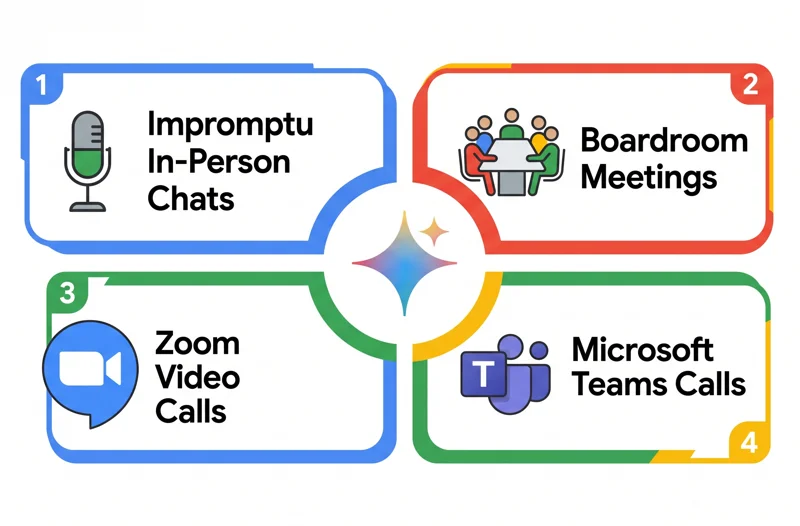
Initially tested in alpha exclusively for Android users, the capability to record physical conversations is now rolling out widely. The most groundbreaking aspect of this update is its platform agnosticism and situational flexibility. You no longer need to be sitting in a formal, pre-scheduled virtual room to leverage the power of Google Meet AI transcripts. Whether you are catching up with a colleague in the hallway, sitting in a traditional corporate boardroom, or dialing into a client’s preferred third-party software, Gemini is ready to assist.
“The true value of an AI note-taking app lies in its ability to be ubiquitous. By expanding to in-person and cross-platform environments, Google is ensuring that no valuable insight is ever lost, regardless of where the conversation happens.”
This flexibility transforms any mobile device or laptop into a dedicated in-person meeting recorder. To understand the full scope of this integration, it is helpful to look at the diverse environments Gemini now supports.
| Meeting Environment | AI Capability | Setup Requirement |
|---|---|---|
| Traditional Google Meet | Full transcript, summary, action items | Native integration, one-click start |
| Impromptu In-Person | Audio transcription via device mic, summary | Open app, click “Take notes for me” |
| Zoom and MS Teams | Audio capture, cross-platform notes | Run alongside the third-party client |
Seamless Integration with Zoom and Teams AI Notes
Perhaps the most surprising and welcome addition is the ability to generate Zoom and Teams AI notes using Google’s ecosystem. Many organizations suffer from app fatigue, forced to use different AI tools depending on which software a client prefers. Now, users can simply launch the Google Meet application on their desktop or mobile device, initiate the notetaker, and let Gemini process the audio from the Zoom or Microsoft Teams call. It captures the dialog flawlessly, applying the same high-level Gemini meeting summarization you would expect from a native Google call.
How It Works Seamlessly: From Audio to Action
The user experience has been designed with absolute simplicity in mind. If you find yourself stepping into an unscheduled physical meeting, there is no need to create a calendar invite to trigger the AI. Users simply navigate to the Google Meet homescreen on their mobile app or desktop interface. A prominent “take notes for me” button allows you to instantly start the recording process. The device’s microphone acts as an in-person meeting recorder, capturing the room’s audio.
Google has also considered hybrid scenarios. If an impromptu physical gathering suddenly requires input from a remote worker, the support documentation notes that you can seamlessly transition the active recording session into a standard video call, inviting the remote participant without interrupting the AI’s transcription process.
“The friction of documenting a meeting has been completely removed. A single tap transforms spoken brainstorming into structured, searchable data.”
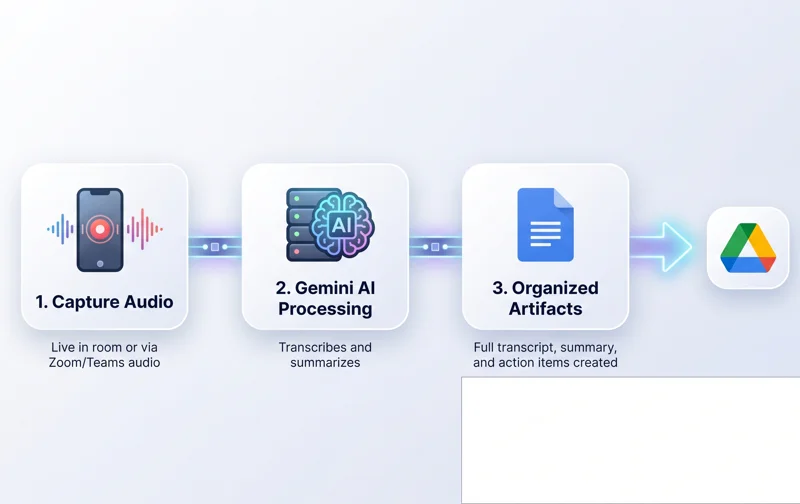
Once the conversation concludes, Gemini immediately goes to work. It does not just provide a massive wall of text. Instead, it intelligently processes the dialogue to extract meaningful data points.
| Output Component | Description |
|---|---|
| Full Transcript | A complete, time-stamped log of everything spoken during the session. |
| Executive Summary | A concise paragraph highlighting the main topics and decisions made. |
| Action Items | A bulleted list of tasks, assigned responsibilities, and upcoming deadlines. |
Instant Organization in Google Drive
The convenience does not stop when the meeting ends. The generated text is automatically formatted into a clean Google Doc. This document is instantly saved and categorized within the Google Drive of the user who initiated the “take notes for me” feature. This eliminates the need to manually copy and paste text from a third-party AI note-taking app into your company’s storage ecosystem. You can share this document instantly with your team, ensuring everyone is aligned. For further reading on Google’s productivity enhancements, you can explore the Official Workspace Updates.
| Device Platform | Accessibility Method | Best Use Case |
|---|---|---|
| Android / iOS App | Homescreen “Take notes” button | Physical boardrooms, hallway chats |
| Desktop Browser | Web app dashboard interface | Zoom/Teams calls, desk meetings |
Frequently Asked Questions
Do I need to schedule a meeting in Google Calendar to use the AI notetaker?
No, the feature works for impromptu conversations. You can simply open the app and start recording without any prior scheduling.
Can I use this feature if I am attending a meeting on Zoom?
Yes, you can activate the Google Meet AI notetaker on your device to capture the audio and generate notes for meetings hosted on Zoom or Microsoft Teams.
Where are the meeting notes saved?
Gemini automatically creates a Google Doc containing the transcript, summary, and action items, which is directly saved to your Google Drive.
Is the in-person meeting recorder available on iPhone?
While initially limited to Android alpha users, the full rollout includes support across mobile platforms via the Google Meet app.
What happens if someone needs to join my in-person meeting remotely?
You can seamlessly transition your active in-person recording session into a standard video call to allow remote participants to join.
Does the AI just provide a basic transcript?
No, alongside the full transcript, Gemini meeting summarization extracts key points and creates a dedicated list of action items.
Do I need to be inside a designated meeting room to use this?
Not at all. Google explicitly states that you do not need to be in a formal meeting room; you can record casual business conversations anywhere.
Disclaimer: This article is for informational purposes only. Features, availability, and platform integrations related to Google Workspace and Gemini AI are subject to change based on geographic location and subscription tiers.