
Dealing with Galaxy S26 Problems right out of the box can be incredibly frustrating, especially after investing in a premium 2026 flagship device. The Samsung Galaxy S26 series hit the market earlier this year to massive fanfare, promising unparalleled performance and revolutionary features. However, while it hasn’t been out for long, early adopters are already flooding tech forums with reports of unusual glitches. Most of the problems have actually been related specifically to the top-tier Galaxy S26 Ultra model, though a few software quirks apply universally to the whole S26 family. In this comprehensive guide, we will break down exactly what is going wrong and provide you with step-by-step solutions to fix them.
The S26 Ultra Display Dilemma: What Is Going Wrong?
A fairly wide number of users have reported severe issues with the device’s display. For a smartphone renowned for its stunning visual capabilities, this is a major letdown. Users are specifically complaining about the Galaxy S26 Ultra screen fuzzy appearance, erratic dimming behavior, and general eye strain during extended use. If you are experiencing Samsung S26 eye discomfort, know that you are not alone. The root cause appears to be a software calibration issue related to how the new display panels handle low-light environments and privacy features.
“While the Galaxy S26 series boasts state-of-the-art display hardware, the software calibration for its new OLED panels has left many early adopters struggling with unexpected eye strain and fuzzy text rendering.”
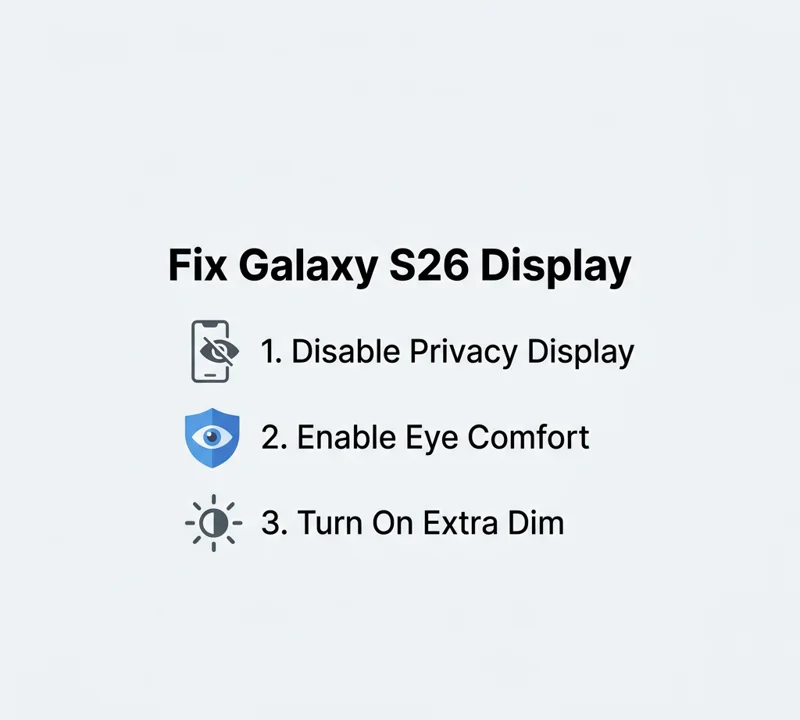
Samsung has officially acknowledged these reports and is currently investigating the issue. The company will hopefully resolve it completely with an upcoming over-the-air (OTA) software update. But what are you supposed to do in the meantime? Fortunately, you do not have to suffer through fuzzy text and eye strain while waiting for a patch. Through extensive Samsung smartphone troubleshooting, the tech community has discovered several software tweaks that drastically improve the display quality right now.
| Reported Display Issue | Primary Symptom | Impact on User |
|---|---|---|
| Fuzzy Text Rendering | Letters appear pixelated or surrounded by a slight glow, especially on dark mode. | Difficulty reading long articles or emails, leading to severe eye fatigue. |
| Aggressive Auto-Dimming | The screen suddenly drops brightness levels without a change in ambient light. | Interrupts media consumption and makes outdoor viewing temporarily impossible. |
| PWM Flicker Sensitivity | Invisible screen flickering at low brightness levels. | Headaches, nausea, and general Samsung S26 eye discomfort after minutes of use. |
Step-by-Step Troubleshooting Guide for Display Fixes
Until Samsung pushes a permanent firmware fix, you can take matters into your own hands. The following potential solutions involve tweaking specific display settings. In fact, it’s highly recommended to pair multiple solutions together, as combining these tweaks has yielded the best results for frustrated users.
Fix 1: Tweak Your Galaxy S26 Privacy Display Settings
One of the new features introduced this year involves granular control over screen visibility to protect your privacy from onlookers. However, this feature is heavily suspected to be the main culprit behind the display distortion. The Privacy Display feature controls the brightness and viewing angles of specific pixels on the screen, which inadvertently causes the fuzzy text effect.
To adjust things, you need to navigate through your device’s settings menu. Go to Settings > Display > Privacy Display. If you look at the options, you might find that your phone has “Maximum privacy protection” enabled by default. We strongly recommend turning this off entirely, or lowering it to the minimum setting, to see if it makes an immediate difference. For most users, disabling this feature instantly restores the crisp, sharp text that Samsung screens are famous for.
“Disabling the Maximum Privacy Protection mode is often the quickest way to restore screen clarity and eliminate the aggressive pixel manipulation causing text distortion.”
Fix 2: Set Up and Calibrate Eye Comfort Shield
If you have disabled the privacy features but are still experiencing headaches or fatigue, the issue might be related to blue light emission or pulse-width modulation (PWM) sensitivity. To combat this, Samsung includes a robust Eye Comfort Shield. This feature is specifically designed to help protect your eyes from discomfort by adjusting the screen’s color temperature based on the time of day.
To enable and configure this, navigate to Settings > Display and tap on Eye comfort shield. Do not just toggle it on; tap on the text to enter the specific menu. Here, you can choose between “Adaptive” and “Custom.” For users experiencing severe issues, we recommend selecting “Custom” and setting the schedule to “Always on,” while dragging the color temperature slider slightly towards the warmer (yellow) side. This simple change could make enough of a difference to offset the Galaxy S26 Ultra’s current brightness calibration problems.
| Eye Comfort Setting | How It Works | Best Use Case |
|---|---|---|
| Adaptive Mode | Automatically adjusts screen colors based on the time of day and ambient lighting. | General everyday use for users who do not have severe light sensitivity. |
| Custom Mode (Scheduled) | Turns on the blue light filter only during specific hours (e.g., sunset to sunrise). | Users who read mostly at night before going to sleep. |
| Custom Mode (Always On) | Keeps the screen constantly at a warmer color temperature to reduce strain. | Highly recommended for users currently experiencing severe S26 eye discomfort. |
Fix 3: Utilize the S26 Extra Dim Mode
Another excellent workaround for screen brightness and flickering issues involves utilizing accessibility features that bypass standard display limits. If the lowest brightness setting on your phone still feels too harsh in a dark room, or if low brightness triggers fuzzy text, the Extra Dim mode is your best friend. This mode applies a software-level dark overlay to the screen, allowing the physical pixels to operate at a higher, more stable voltage while appearing dimmer to your eyes.
To activate this, go to Settings > Accessibility > Vision Enhancements. Scroll down and you will find the toggle for Extra Dim. You can even tap it to adjust the intensity of the dimming effect. Many users have found that keeping their phone’s standard brightness slider at around 30% (to avoid PWM flickering) and then using Extra Dim mode to lower the perceived brightness completely eliminates their eye strain.
“For late-night scrollers, the Extra Dim mode bypasses standard hardware brightness limitations, offering massive relief without triggering the screen’s fuzzy rendering artifacts.”
Staying Updated: When Will a Permanent Fix Arrive?
While the workarounds mentioned above are highly effective, they are still just temporary bandages. A true, permanent fix requires a low-level firmware update from the manufacturer. Samsung has a strong track record of addressing launch window bugs quickly. It is crucial to ensure your device is always running the latest software version. You can manually check for updates by going to Settings > Software update > Download and install.
If you continue to experience hardware-related defects, such as permanent dead pixels or hardware overheating that cannot be solved via software tweaks, you should reach out directly to the manufacturer. You can find warranty information and contact support agents through the Official Samsung Support Portal. Always ensure your device is backed up before attempting any major factory resets or sending your phone in for repair.
| Action to Take | How to Execute | Expected Outcome |
|---|---|---|
| Software Update | Settings > Software update > Download and install | Installs official patches that may permanently resolve display bugs. |
| Clear Cache Partition | Turn off phone > Hold Power & Vol Up > Select ‘Wipe cache partition’ | Clears temporary system files that might cause erratic dimming behavior. |
| Factory Reset | Settings > General management > Reset > Factory data reset | Last resort. Erases all data to fix deeply rooted software corruption. |
Frequently Asked Questions
Are Galaxy S26 Problems limited to just the Ultra model?
While the majority of the display complaints, specifically regarding fuzzy text and eye strain, are concentrated on the Galaxy S26 Ultra due to its unique screen panel, some minor software bugs affect the base S26 and S26+ models as well.
Will a software update actually fix my Galaxy S26 Ultra screen fuzzy text?
Yes, Samsung has indicated that the fuzzy text is primarily a software calibration issue related to the new Privacy Display algorithms, meaning an OTA update can completely resolve it without needing a hardware replacement.
Why does the S26 cause eye discomfort compared to older phones?
The Samsung S26 eye discomfort is likely caused by the display’s Pulse-Width Modulation (PWM) rate at low brightness levels, combined with the aggressive new auto-dimming features that constantly strain the eyes to refocus.
Does turning off Privacy Display compromise my phone’s security?
No. The Privacy Display settings only restrict the viewing angles of the physical screen to prevent “shoulder surfing” in public. Disabling it does not affect your digital security, passwords, or data encryption.
How do I easily toggle S26 Extra Dim mode without digging through settings?
You can add an “Extra Dim” shortcut directly to your Quick Settings panel. Swipe down twice from the top of your screen, tap the pencil (edit) icon, and drag the Extra Dim toggle into your active tiles for one-tap access.
Should I return my phone if I experience these display issues?
If the issues persist after trying the software workarounds (Privacy Display off, Extra Dim on) and you are still within your retailer’s return window, it is a personal choice. However, a software fix is highly anticipated soon.
What should I do if my screen has physical defects like dead pixels?
Software updates and settings tweaks cannot fix physical hardware defects. If you have dead pixels or a cracked screen out of the box, you must contact Samsung Support or your carrier immediately for a warranty replacement.
Disclaimer: This article is for informational purposes only. The troubleshooting steps and potential fixes discussed are based on user reports and general technical knowledge regarding the Samsung Galaxy S26 series. Proceed with settings adjustments at your own discretion.
