Are you connected to AT&T but experiencing painfully slow internet, or unable to access the 5G network entirely? If you recently brought an unlocked phone to the network or reset your device, the problem is likely your Access Point Name (APN).
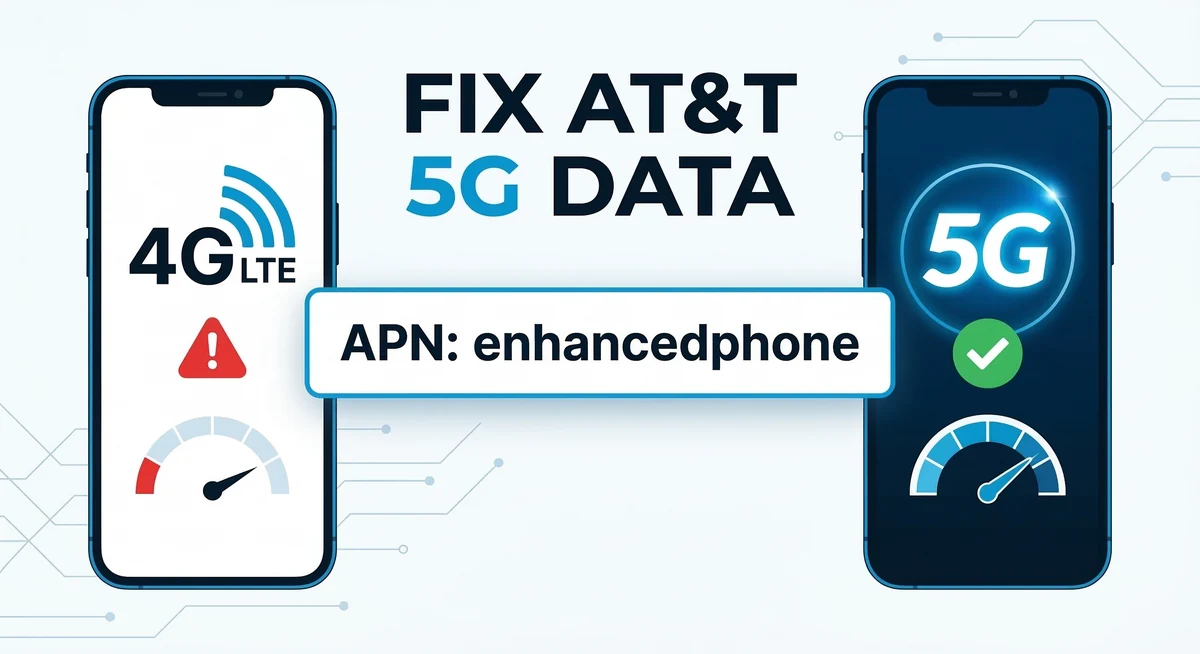
Without the correct AT&T APN settings 5G configuration, your smartphone won’t know how to communicate properly with AT&T’s high-speed mobile data servers.
Key Takeaways: Quick APN Fix
The Core Issue: Unlocked and Android devices often default to older 4G/LTE APNs instead of the newer 5G profiles.
The New Standard: For most modern 5G devices on AT&T, the correct APN name must be set to enhancedphone.
Restart Required: Always save the new APN and restart your phone to force the network to register your 5G connection.
In this guide, we will walk you through the exact AT&T 5G APN setting you need to enter to restore your high-speed internet, MMS, and mobile hotspot functionality.
Why Do You Need Specific APN Settings for AT&T 5G?
An Access Point Name (APN) is the gateway between your mobile network and the public internet. While iPhones usually update these settings automatically via Carrier Settings Updates, Android users frequently have to input them manually.
If you are using an older configuration, your phone will cap your speeds at LTE or even 3G levels. Updating your AT&T access point names 5G ensures that your device can authenticate with the network’s latest mid-band and ultra-wideband 5G towers.
The Official AT&T APN Settings 5G (For Android Devices)
If you are using an Android device (like a Samsung Galaxy, Google Pixel, or Motorola), follow these exact steps to update your network profile. This is the most effective AT&T APN settings 5G Android fix available today.

How to find the APN menu:
-
Open your phone’s Settings app.
-
Tap on Network & Internet (or Connections).
-
Select Mobile Network > Advanced > Access Point Names.
-
Tap the + (Plus) icon or “Add” to create a new APN.
The “Enhancedphone” APN Configuration (Postpaid & Prepaid)
Enter the following details exactly as written below. Leave any field blank if it is not mentioned in this list. This setup works perfectly for standard accounts as well as those needing the correct AT&T prepaid 5G APN settings.
-
Name: AT&T 5G
-
APN: enhancedphone (Note: Older 4G devices used “nxtgenphone”, but “enhancedphone” is required for 5G).
-
Proxy: Not set
-
Port: Not set
-
Username: Not set
-
Password: Not set
-
Server: Not set
-
MMS proxy: proxy.mobile.att.net
-
MMS port: 80
-
MCC: 310
-
MNC: 410
-
Authentication Type: None
-
APN type: default,mms,supl,hipri,fota
-
APN protocol: IPv4/IPv6
-
APN roaming protocol: IPv4/IPv6
-
APN enable/disable: Enabled
-
Bearer: Unspecified
Important: Once you have entered this information, tap the three dots in the upper right corner and hit Save. Select the new ATT enhancedphone APN profile, then completely restart your device.
Troubleshooting: What If It Still Doesn’t Work?
If you have entered the APN for AT&T 5G correctly but are still not seeing the 5G icon in your status bar, check the following:
-
Verify Your Plan Details: Not all legacy AT&T plans include 5G access. Log into your AT&T account and confirm that your current plan is provisioned for 5G.
-
SIM Card Age: If your SIM card is several years old, it might not support the modern 5G network architecture. Visit an AT&T store to request an updated 5G SIM card or migrate to an eSIM.
-
Reset Network Settings: Sometimes, old cached data conflicts with new settings. Go to Settings > System > Reset Options > Reset Wi-Fi, mobile & Bluetooth. (Warning: This will also erase your saved Wi-Fi passwords).
Final Thoughts
Configuring your AT&T 5G settings shouldn’t be a headache. By creating a new profile using the “enhancedphone” APN, you are guaranteeing that your unlocked Android device takes full advantage of the carrier’s fastest network speeds.
Did these settings work for your specific phone model? Drop a comment below with your device name to help others in the community!