When looking ahead at the most anticipated Android 17 Features, it is clear that Google is focusing heavily on user-requested quality-of-life improvements and enhanced privacy controls for 2026.
It has only been a short time since the rollout of the Android 16 QPR3 update, which introduced desktop mode and customizable navigation buttons. However, the tech giant is moving forward with an accelerated development cycle. Exciting new functionalities are already appearing in Canary builds, giving us a clear preview of what the Android 17 beta and the eventual stable release will look like. With the stable rollout expected around June 2026, we are breaking down the most significant upgrades that are currently in development.
The Return of Separate Wi-Fi and Mobile Data Toggles
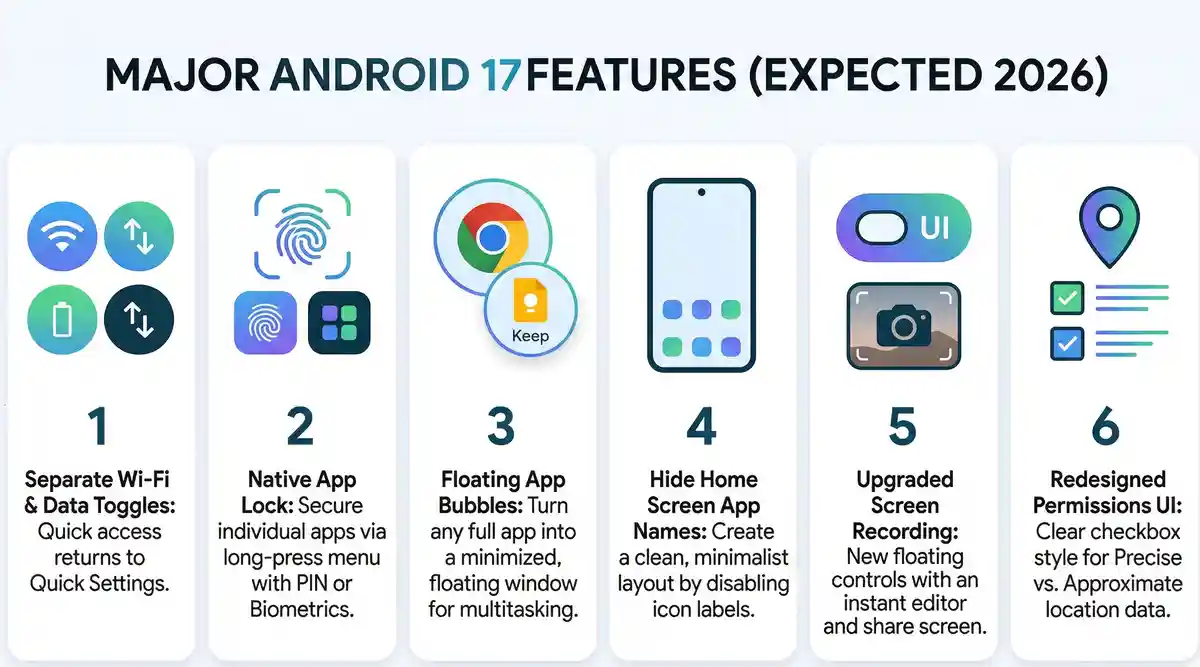
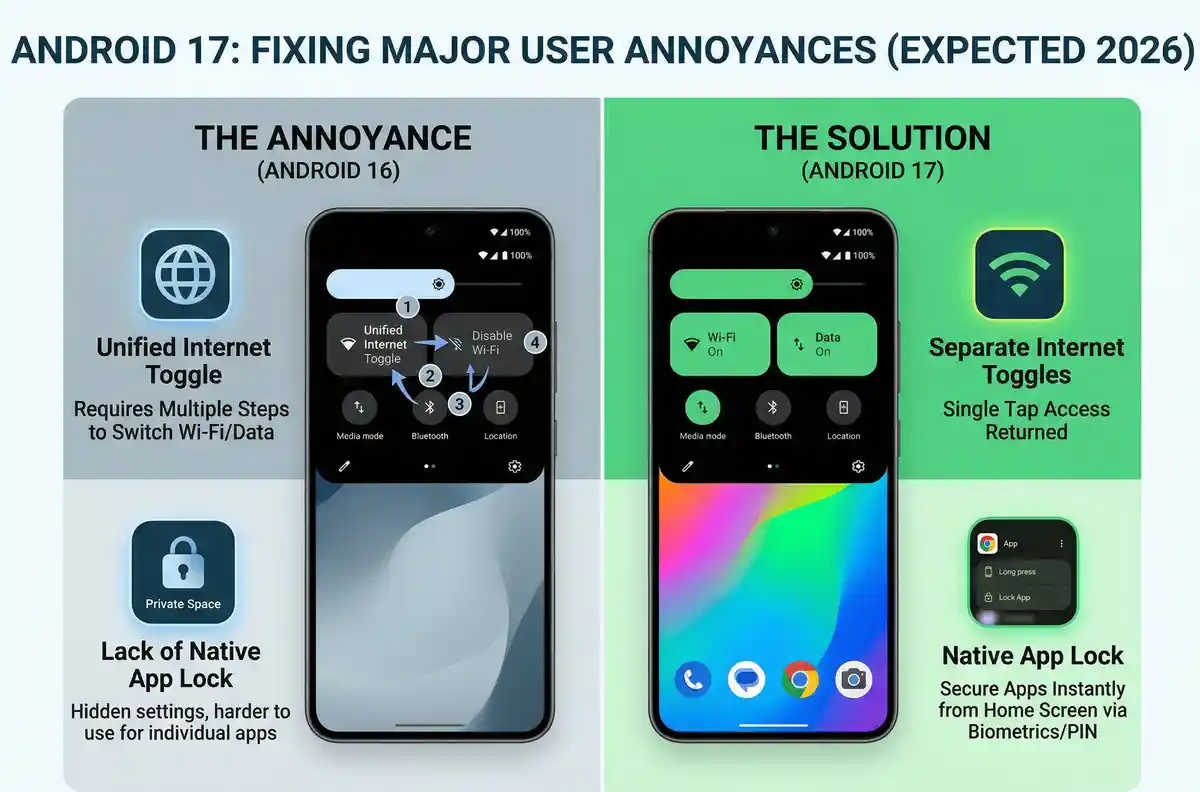
One of the most heavily criticized changes in recent Android history was the introduction of the unified internet toggle. For years, users on Pixel devices have been forced to open Quick Settings, tap the Internet tile, and navigate a secondary menu just to switch between Wi-Fi and mobile data. Thankfully, Google is reversing this decision.
In the upcoming update, users will finally be able to add separate, dedicated toggles for Wi-Fi and mobile data right on their Quick Settings panel. This brings the stock Pixel experience back in line with other popular Android skins, like Samsung’s One UI, which never abandoned the separated toggles.
| Feature State | Android 16 (Current) | Android 17 (Upcoming) |
|---|---|---|
| Quick Settings Menu | Unified “Internet” Tile | Separate Wi-Fi & Data Tiles |
| Steps to Disable Wi-Fi | 3 Taps (Swipe down > Internet > Wi-Fi off) | 1 Tap (Swipe down > Wi-Fi toggle) |
| User Feedback | Highly frustrating for power users | Highly requested and praised return |
The return of the separated internet toggle proves that Google is actively listening to user feedback to refine the core OS experience.
Enhanced Privacy: Native App Lock
Privacy is paramount in 2026. While third-party apps and the Private Space feature have served as workarounds, Android is finally introducing a native app lock. You will be able to lock individual apps directly from your home screen using your device’s built-in security measures.
How the Native App Lock Works
By simply long-pressing an app icon, the quick actions menu will display a new option to lock the app. Once locked, the application’s notifications, shortcuts, and associated widgets will be completely hidden from the system interface. This ensures that sensitive data, such as banking details or personal photos, remains secure even if you hand your unlocked phone to a friend.
| Authentication Method | Supported by Native App Lock | Security Level |
|---|---|---|
| Biometrics (Fingerprint) | Yes | Very High |
| Face Unlock | Yes | High |
| PIN / Password | Yes | High |
| Pattern Lock | Yes | Medium |
Google has also implemented smart notifications for cross-app access. For instance, if you lock Google Photos, the system will alert you if other third-party applications still have permission to access your image gallery. Note that advanced AI features, like screen automation via Gemini, might still interact with locked apps based on your granted system permissions.
Revolutionizing Multitasking with App Bubbles
Multitasking on mobile has historically been restricted to split-screen views, which heavily reduces the workable area of both active applications. Building upon the foundation of conversation bubbles, Google is expanding this functionality to encompass entire applications.
With this new feature, you can turn any active app into a floating bubble. Imagine researching statistics in the Chrome browser while taking detailed notes in Google Keep. Instead of clumsily swapping back and forth through the recent apps menu, you can convert Google Keep into a small, floating window that sits on top of your browser.
Floating app bubbles will fundamentally change multitasking, especially for users taking advantage of large-screen foldable devices.
| Multitasking Mode | Screen Real Estate Usage | Best Use Case |
|---|---|---|
| Split Screen | 50/50 rigid division | Comparing two documents side-by-side |
| Picture-in-Picture (PiP) | Small floating corner window | Watching video while navigating UI |
| App Bubbles (New) | Collapsible floating overlay | Quick note-taking or messaging over full-screen tasks |
Pixel Home Screen Customization: Hiding App Names
For users who prefer a clean, minimalist aesthetic, Beta 3 has introduced the ability to remove app labels directly from the home screen. While custom launchers have offered this for years, integrating it natively into the Pixel launcher is a massive win for customization enthusiasts.
Steps to Create a Minimalist Home Screen
To disable the text beneath your application icons, users will navigate through the system personalization settings. This change strictly applies to the main home screen grid, leaving folders and the main app drawer unaffected so navigation remains intuitive.
| Step | Action Required |
|---|---|
| Step 1 | Long press on an empty space on your home screen. |
| Step 2 | Select “Wallpaper & style” from the pop-up menu. |
| Step 3 | Navigate to “Home screen” and then select “Icons”. |
| Step 4 | Toggle off the “Show app names” setting. |
Upgraded Screen Recording Interface
The screen recording tool is receiving a much-needed overhaul. Currently, tapping the screen record tile prompts a basic, intrusive pop-up. The new update replaces this with a sleek, floating pill interface that allows for rapid adjustments to microphone audio, touch visibility, and recording scope (single app vs. full screen).
More importantly, the post-recording workflow is being streamlined. Just like capturing a screenshot, ending a screen recording will now generate a preview screen. This allows you to instantly trim, share, or delete the clip without having to dig through your Google Photos gallery.
Seamlessly editing and sharing screen recordings immediately after capture will save users countless steps and eliminate gallery clutter.
Redesigned Permissions Menu
Understanding what data your applications are accessing is critical. The current permissions pop-up can sometimes be confusing, especially regarding location data. The forthcoming update introduces a cleaner, checkbox-style design for “Precise” and “Approximate” location tracking. This subtle UI tweak significantly improves clarity, ensuring users know exactly what level of access they are granting.
| Permission Type | Old UI Design | New UI Design |
|---|---|---|
| Location Accuracy | Text-based toggle buttons | Clear checkbox-style visual indicators |
| App Access | Standard pop-up dialog box | Streamlined bottom-sheet interface |
| Data Clarity | Sometimes ambiguous | Highly transparent and user-friendly |
Looking Forward to the Final Release
As with all software in active development, it is important to remember that not every feature seen in early testing will make the final cut. However, given Google’s current trajectory and testing phases, there is a very high probability that these core functionalities will launch with the stable build. For more detailed technical documentation on OS updates, you can always monitor the Official Android Developers Blog.
Frequently Asked Questions
When will the stable version of Android 17 be released?
Based on Google’s accelerated development cycle, the stable release is expected to launch around June 2026.
Will I be able to separate my Wi-Fi and mobile data toggles?
Yes, the new update brings back the ability to add distinct Wi-Fi and mobile data buttons to your Quick Settings panel, undoing the unified internet toggle change.
How does the new native app lock work?
You can long-press an app on your home screen and select the lock option. It requires your device’s PIN, pattern, fingerprint, or face unlock to open, and it hides all related notifications.
Can I lock apps using third-party tools instead?
Yes, third-party tools are still functional, but the native OS solution provides deeper system-level integration, preventing notification leaks more effectively.
What are app bubbles and how do they help multitasking?
App bubbles allow you to collapse full applications into floating icons on your screen. You can tap the bubble to open the app in a small floating window over your current task, making switching between tasks much faster than traditional split-screen.
Can I hide app names on my Pixel’s home screen?
Yes, under the ‘Wallpaper & style’ settings, there is a new toggle to turn off app labels, resulting in a cleaner, minimalist aesthetic for your home screen icons.
What happens after I finish a screen recording in the new update?
Instead of saving silently to your gallery, a new preview screen will appear immediately. This interface allows you to instantly play, edit, share, or delete the captured video clip.
Disclaimer: This article is for informational purposes only. Features discussed are based on early developer previews and beta builds. Final features, functionality, and user interfaces are subject to change by Google prior to the official stable software release.